Custom Tool Setup
Custom tools let your AI agent call your own APIs during a conversation — looking up an order, checking availability, or triggering an action in your systems. This guide covers tool configuration, authentication, and the response format your API must return.
When to use a custom tool
Knowledge files answer questions from static content. Custom tools fetch live data or perform actions at the moment the user asks.
Use a custom tool for
- Live data: order status, account balance, stock levels
- Per-user answers that depend on who is asking
- Actions: create a ticket, book a slot, send a request
Use knowledge files for
- Product documentation and FAQs
- Policies, guides, and reference material
- Content that changes rarely and applies to everyone
Registering a tool
Register a tool in your agent settings. The agent decides when to call it based on the tool's name and description, so write them the way you would explain the tool to a colleague.
Swipe sideways to see the full table
| Field | Purpose | Example |
|---|---|---|
| Tool name | Unique identifier the agent uses to select the tool | Get User Orders |
| Description | Tells the agent what the tool does and when to use it | Retrieves the current user's order history |
| API URL | Endpoint on your backend the platform will call | https://api.yoursite.com/orders |
| Request type | HTTP method (GET, POST, ...) | GET |
| Use Auth | Whether the call should carry the authenticated user's token | true |
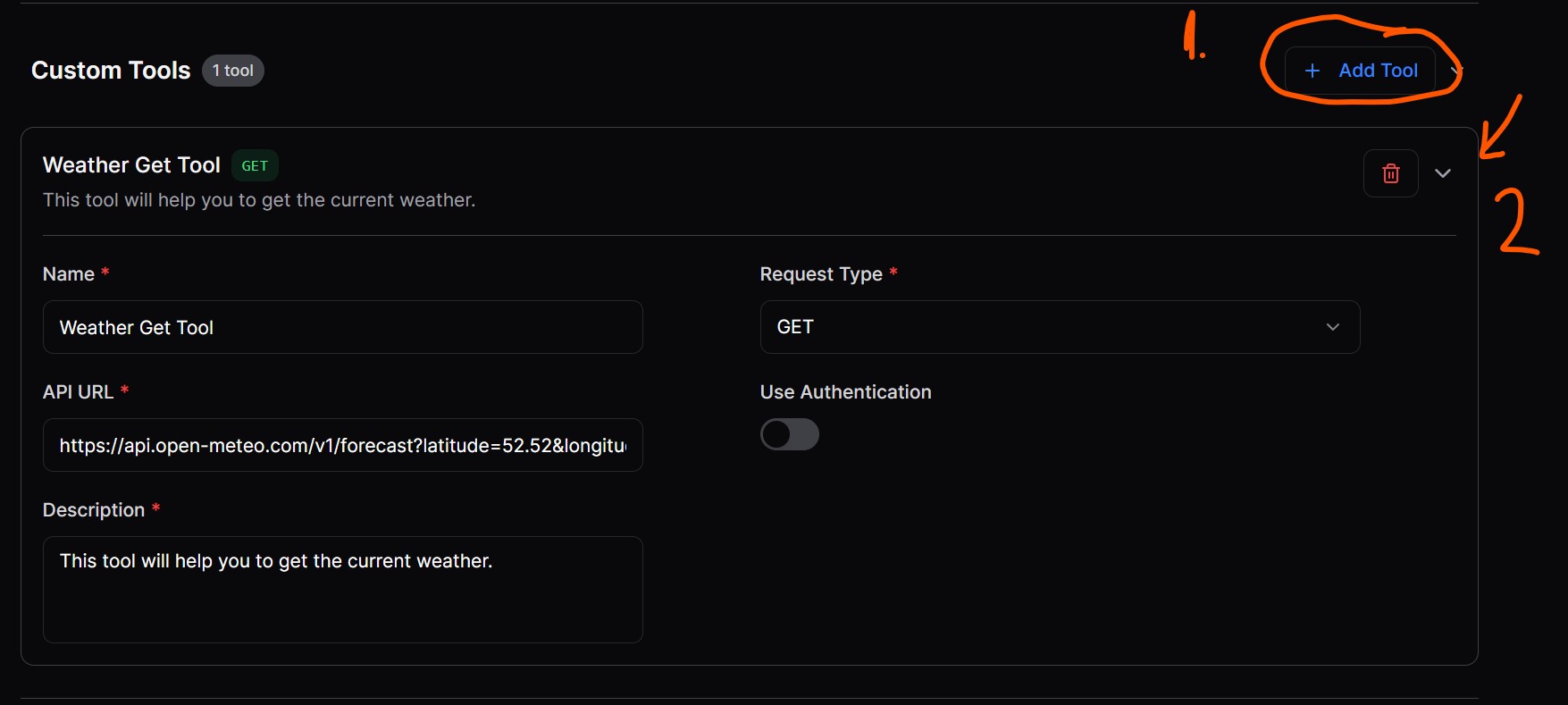
Configuring a custom Weather API tool (click to enlarge)
API response format
Your API must return JSON in this structure. The agent uses toolOutput as the main result and appends metadata as supporting context.
{
  "toolOutput": "Main result or data from your API",
  "metadata": {
    "source": "external-api-name",
    "timestamp": "2025-05-20T12:30:00Z",
    "confidenceScore": 0.92,
    "processingTimeMs": 1234
  }
}
Widget authentication
If your tools need to know who the user is, enable the Use Auth option in your widget settings. The chat widget then calls the /agents endpoint with both authentication parameters:
/agents?public_api_key=your_api_key&user_token=user_session_token
Authentication endpoint
Implement an authentication endpoint (auth_url) on your backend that validates the user_token and returns:
{
  "status": "success",          // or "failed"
  "userProperties": {
    "userId": "12345",
    "name": "John Doe",
    "email": "john.doe@example.com",
    "roles": ["admin", "editor"]
  }
}
Return "success" when the token is valid and "failed" when it is not. The userProperties object is made available to your tools for personalized responses.
Authorization header
Every tool endpoint with use_auth = true receives the user token in the Authorization header using the Bearer scheme:
Authorization: Bearer <user_token>
Implementation example
// Node.js Express example
app.get('/api/user-data', (req, res) => {
  const authHeader = req.headers.authorization;
  const token = authHeader && authHeader.split(' ')[1];

  if (!token) {
    return res.status(401).json({ error: 'Token required' });
  }

  validateToken(token).then(user => {
    res.json({
      toolOutput: "User data retrieved successfully",
      metadata: {
        source: "user-api",
        timestamp: new Date().toISOString()
      }
    });
  });
});
Built-in integrations
Before building a custom tool, check whether a built-in integration already covers your use case. Tridan AI agents connect directly to:
- Gmail
- Google Calendar
- Google Maps
- Outlook
- Confluence
- Jira
- Notion
- Zendesk
- SMTP
MCP (Model Context Protocol)
Tridan AI agents can also connect to MCP servers. MCP is an open standard for exposing tools to AI agents, so any service that publishes an MCP server can be plugged into your agent without writing and hosting custom endpoints yourself.
- Connect standardized third-party tools with a server URL instead of a custom API
- The agent discovers the server's tools and their parameters automatically
- Combine MCP tools with your own custom tools on the same agent
Best practices
Write clear tool descriptions
The agent chooses tools based on their descriptions. State what the tool returns and when it should be used; vague descriptions lead to missed or wrong tool calls.
Secure your endpoints
Use HTTPS everywhere, validate user tokens on every request, grant each tool the minimum access it needs, and add rate limiting.
Validate inputs and handle errors
Treat tool parameters as untrusted input. Return clear HTTP status codes and error messages, handle timeouts gracefully, and log errors so failed calls are easy to debug.
Integration checklist
- Configure the tool with a clear name, description, URL, and request type
- Ensure your API returns responses in the required format
- Implement the authentication endpoint if the tool needs user context
- Expect the user token in the Authorization header (Bearer scheme) for protected endpoints
- Add rate limiting and error handling to your API
- Test the tool with both authenticated and non-authenticated requests